


ALERT (5/21/25): IF YOU ALREADY HAVE CREATIVE CLOUD FROM UCI, DO NOT RENEW YOUR LICENSE — IT WILL LOCK YOU OUT OF YOUR ACCOUNT!
To preface: There are no downloads on this page (aside from the OIT website), and I earn nothing from writing this.
Introduction
Hi. I’m Eden, a current UCI student. OIT doesn’t give great instructions on how to get free Adobe Creative Cloud. So I wrote this guide to help y’all out.
Anyways, let’s dive in.
Instructions
Step 1
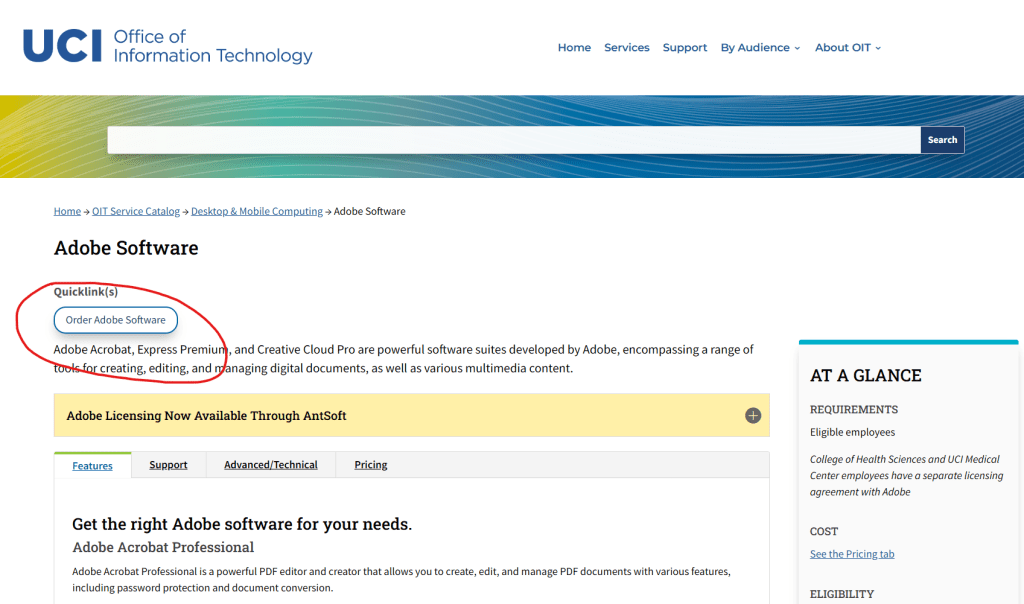
Go to https://www.oit.uci.edu/services/end-point-computing/adobe-software/
Step 2
Click on “Order Adobe Software”
Step 3
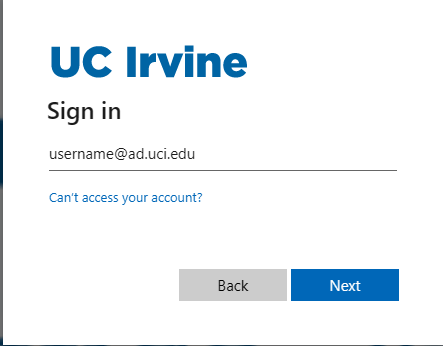
It should take you to a sign-in screen. Enter in your UCI email address, but change the website in the email address from …@uci.edu to …@ad.uci.edu.
Step 4
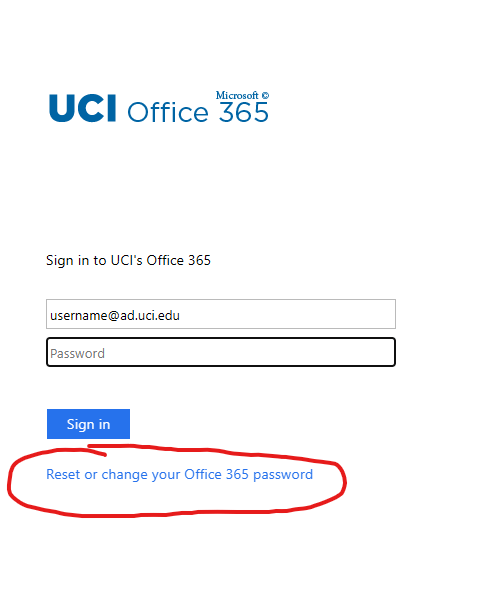
Sign in. Or, if you haven’t made a UCI Microsoft account yet, click on “Reset or change your Office 365 password” and make an account. You’ll have to sign in with your UCINetID.
Step 5
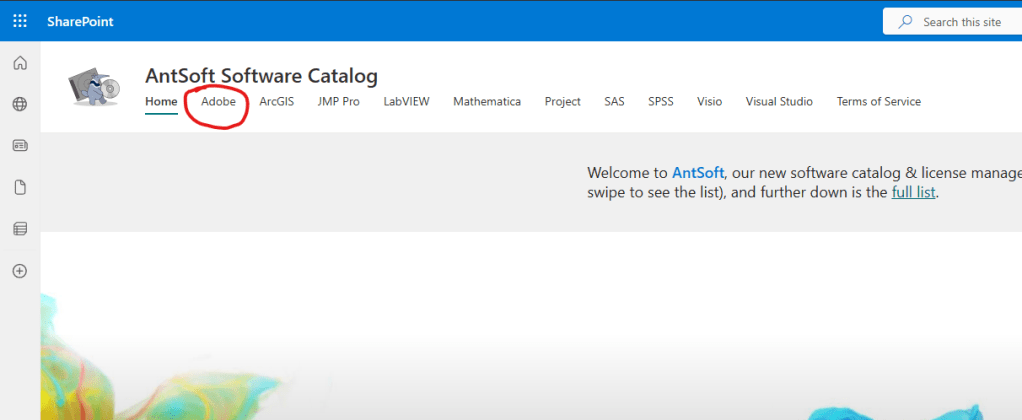
After logging in, you should be greeted with the “AntSoft Software Catalog”. Click on “Adobe” in the top bar.
Step 6
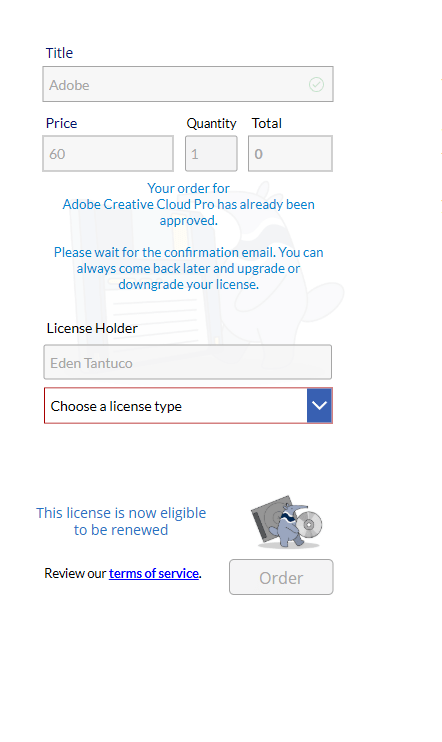
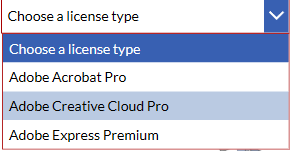
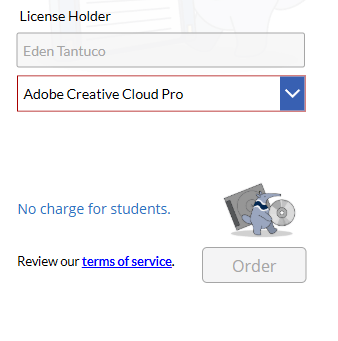
Scroll down on the Adobe page until you see a box that looks like this. Yours may look slightly different because I already have my license. Select “Choose a license type” and then click on “Adobe Creative Cloud Pro”.
Step 7
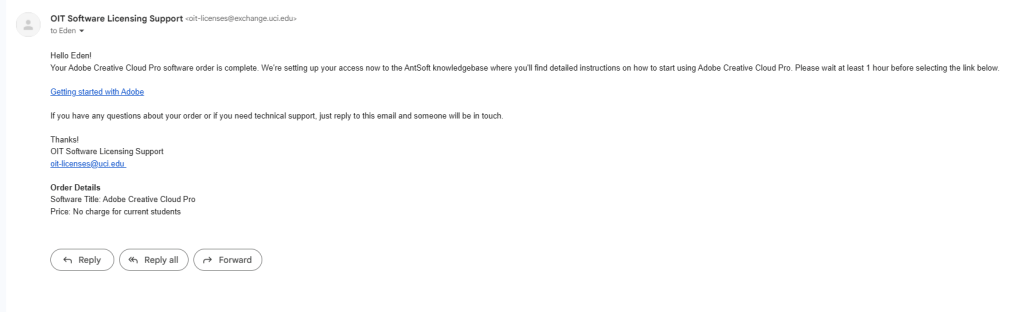
Press “Order”. Wait for an email from “OIT Software Licensing Support” to appear in your UCI email! (It could take a while — my email took a day to arrive).
Step 8
Download Adobe and sign in with your UCI email.
From there, you should be good to go. Keep in mind that the license expires on June 30 every year, so you’ll need to renew it in advance. But it’s not hard to do.
ALERT: IF YOU ALREADY HAVE CREATIVE CLOUD FROM UCI, DO NOT RENEW YOUR LICENSE — IT WILL LOCK YOU OUT OF YOUR ACCOUNT!
Any questions? Feel free to comment them down below, and I’ll try my best to get to them!
 Eden Tantuco - Irvine, CA Photographer
Leave a comment